.svg)


Whether you want to book a session with a rep, want to know more about FreeStyle Libre or have a specific question, fill in our contact form and your local rep will be in touch as soon as possible.
Getting Started with FreeStyle Libre 2 System
Learn how to set up and use the FreeStyle Libre 2 system and support your patients from the very beginning.


Getting started as a Healthcare Professional
Click through the tabs to begin using the FreeStyle Libre 2 system
Set up your sample sensor in 3 easy steps:

Download the LibreLink app◊ (if you haven't already)
 |  |

Apply the sensor

Activate the sensor
How to apply the sensor
Follow the instructions below to apply and activate the sensor, and watch our video guide for help with activating the sensor.

Wash, clean, and dry
Select a site on the back of your upper arm that stays flat during normal activity. Clean skin with non-moisturising, fragrance-free soap and water. Use an alcohol wipe to clean the skin and let air dry before proceeding.
Prepare applicator
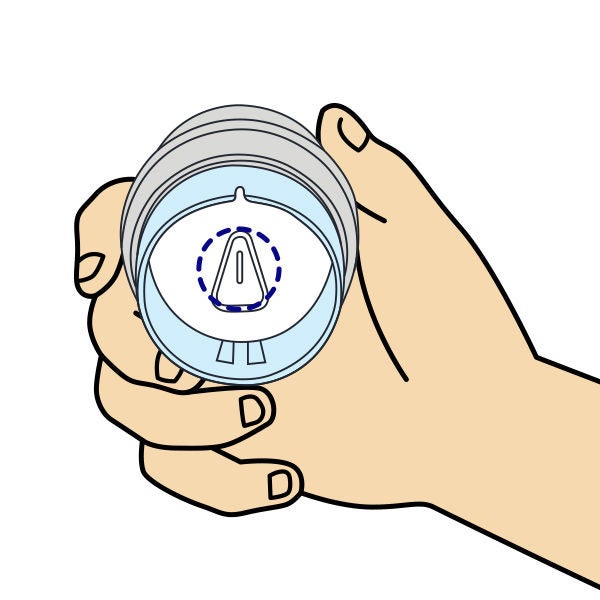
Open the sensor pack by peeling back the lid. Remove the cap from the sensor applicator. Align the dark marks on the applicator and sensor pack. On a hard surface, press down firmly on sensor applicator until it comes to a stop and then lift.

Apply
Apply the sensor to the back of the upper arm. Press the sensor applicator firmly onto the prepared area. Listen for a click. After a few seconds, slowly pull back, leaving the sensor on the skin.
How to activate the sensor
Make sure you register using your personal email address as you'll need your NHS email address in the next step to set up data sharing.
| 01. Open the LibreLink app.◊ | 02. Tap Next on the Apply a new sensor screen. |
| 03. Tap Scan New Sensor. A Ready to Scan popup will appear on your screen. | 04. Hold the top of your phone near the sensor. Don't move your phone. You will hear a tone or feel a vibration. |
| 05. This completes the scan. Wait 1 hour for the sensor to adapt to the body before viewing glucose readings. | |
| 01. Open the LibreLink app.◊ | 02. Hold the back of your phone near the sensor. |
| 03. Do not move the smartphone. until you hear the first tone and/or feel a vibration. This indicates your smartphone and sensor have established an NFC connection. | 04. Continue holding your smartphone near the Sensor. until you hear a second tone and/or feel a vibration. |
| 05. This completes the scan. Wait 1 hour for the sensor to adapt to the body before viewing glucose readings. | |
Once the sensor is set up, your patients can start exploring the app to see the valuable data they can use in the consultations to have meaningful conversations.

The home screen: data at a glance
Real-time glucose
Current glucose level, automatically updated every minute◊,II
Trend arrow
Where glucose level is heading to stay ahead of hypos
8-hour graph
View of glucose levels over the last 8 hours
Easy-to-read reports: identify patterns
Reports include:
Daily Patterns
Variability of sensor glucose readings over a typical day~
Time in Range
Percentage of time sensor glucose readings were above, below or within Target Glucose Range
Optional real-time glucose alarms
How to set up glucose alarms^
Alternatively follow the steps below:
- Tap Alarms in the app menu
- Tap Low Glucose Alarm and turn on
- Scroll to select Low Glucose Value1
- Set High Glucose Alarm2 following the same steps
What is LibreView?
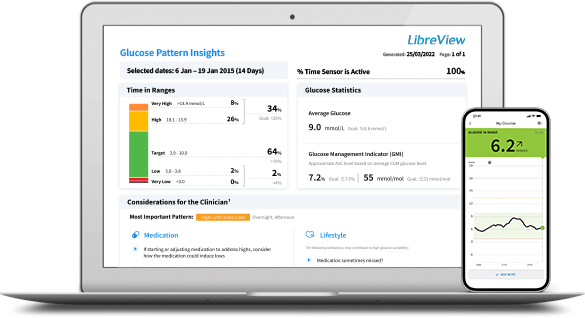
LibreView₼ is a secure3 cloud-based platform that gives you and your team access to patient glucose data to identify patterns and make informed decisions.
You can view consistent, easy-to-understand reports for patients using the LibreLink app.◊ Reports are customisable and can be printed or saved.
How data sharing works
When patients start their sensor in the app, they can choose to automaticallyǁ sync their data with LibreView. You can then view up-to-date reports ahead of appointments.
Once your practice is set up, you can add Care Team members and securely share patient data so everyone can access a complete glucose picture from any internet-connected device.₼
How to set up your Practice account
-
01. Go to the LibreView website
02. Create or log into your proffesional account using your NHS email address.
03. Go to Settings > Create a New Practice
04. Enter practice details and click Create Practice
05. Click Done
You’re now ready to connect with patients. You’ll learn how in the Getting Patients Started section.
Getting patients started
Click through our step-by-step guide to help you onboard eligible patients and start using the FreeStyle Libre 2 System
NICE Guidance
NICE guidelines recommend the use of the FreeStyle Libre 2 system for people with T2DM on MDI.4
Read the full NICE Guidance and check the policies for your area.
How to identify eligible patients
Once you have your LibreView practice set up, book a session with a rep to identify patients at your practice who may be eligible for the FreeStyle Libre 2 system.
What does your patient need to begin using the FreeStyle Libre 2 system?

Compatible device
If your patient doesn't have a smartphone compatible with the LibreLink app,◊ they will need a Libre 2 reader.
Readers can be ordered when ordering starter sensors.

Starter sensor
Patients will need a free trial Libre 2 Plus sensor to get started using the system. If you choose to get patients started at your practice, you will need to give them their free sensor.
Training options:
Get started at home
Patients can watch our video training online from the comfort of their own home at a time that works for them.
Ideal for: Patients who are comfortable using technology and following instructions independently.
Get started at your practice
You and your patients can watch our training video together or download the quick reference guide to help them get started with their sensor.
Ideal for:
- Patients who may need some guidance throughout the training.
- Practices who feel comfortable working through the training with their patients.
Get started with Abbott
Book online or in-person training for your patients led by an Abbott representative.
Ideal for:
- Patients who may need some guidance throughout the training.
- Practices who do not feel comfortable working through the training with patients themselves.
Book a training session
Fill in our contact form below to request a training session.
Not sure which training route to choose?
Let your patient choose
Give your patient the option to choose their training by sharing this link with them: https://pro.freestyle.abbott/uk-en/libre-hub/patient-self-select-training.html

Libre 2 Plus sensor
Quantity: 2 sensors / 30 days (1 sensor lasts 15 days)
PIP Code: 428-0194
What next?
Direct patients to MyFreeStyle
After prescribing the Libre 2 Plus sensors, direct your patients to MyFreeStyle: our customer learning, knowledge and support hub. From there, we can help and guide them along their journey.
Get the most out of your consultations
Head to our Materials Library to learn more about using the FreeStyle Libre 2 system in your consultations and expand your knowledge.
Need more support?
Use our guided support tool to find the answer to your question or contact one of our reps.
References & Disclaimers
Images are for illustrative purposes only. Not real patients, data or healthcare professionals.
₼ The LibreView data management software is intended for use by both patients and healthcare professionals to assist people with diabetes and their healthcare professionals in the review, analysis and evaluation of historical glucose device data to support effective diabetes management. The LibreView software is not intended to provide treatment decisions or to be used as a substitute for professional healthcare advice.
◊ The FreeStyle LibreLink app is only compatible with certain mobile devices and operating systems. Please check the website for more information about device compatibility before using the app. Sharing of glucose data requires registration with LibreView.
^ Notifications will only be received when alarms are turned on, and the sensor is within 6 metres unobstructed of the reading device.
~ Daily Patterns needs at least 5 days of glucose data.
II Glucose readings are automatically displayed in the app only when the smartphone and sensor are connected and in range.
1. 3.9 mmol/L is the default Low Glucose Alarm level and can be set between 3.3–5.6 mmol/L.
2.13.3 mmol/L is the default High Glucose Alarm level and can be set between 6.7–22.2 mmol/L.
3. LibreView is ISO27001/27018/27701 certified and HITRUST CSF Certified.
4. NICE guideline NG28 (2015) Last updated: 18 February 2026; available at https://www.nice.org.uk/guidance/ng28.
ADC-93673 V4.0


Loading...
Do you want to leave this page?
The "Yes" link below will take you to a website other than Abbott Laboratories. Links to other websites are not under the control of Abbott Laboratories, and Abbott Laboratories is not responsible for the content of such websites or any link contained in such websites. Abbott Laboratories is providing these links to you only as a convenience, and the inclusion of any link does not imply endorsement by Abbott Laboratories of the site.
Do you want to leave this page?
This website is only for medical professionals who live and practice in the UK.
If you're a healthcare professional located in a different country, please select your country's website from the list of our global sites or contact your local Abbott representative for correct information about the products available in your country.
If you're not a healthcare profressional, click here to go to the FreeStyle Libre consumer website for the UK.