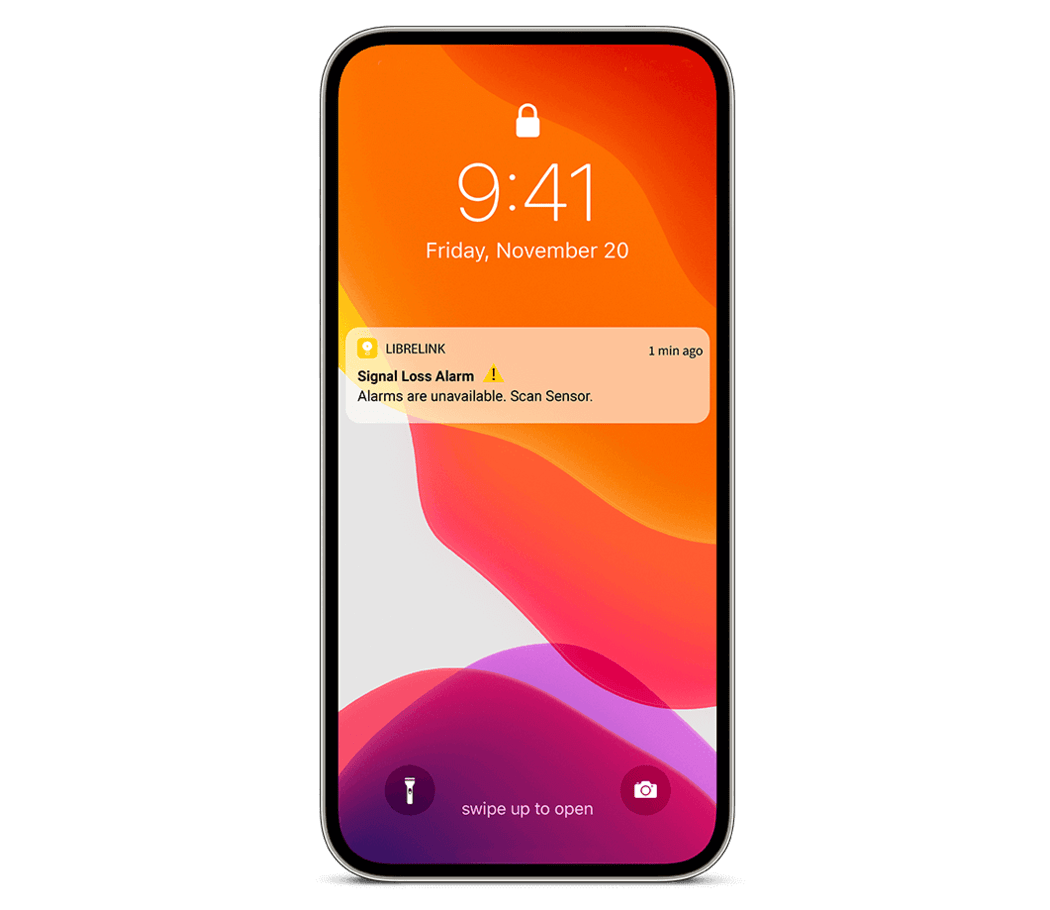
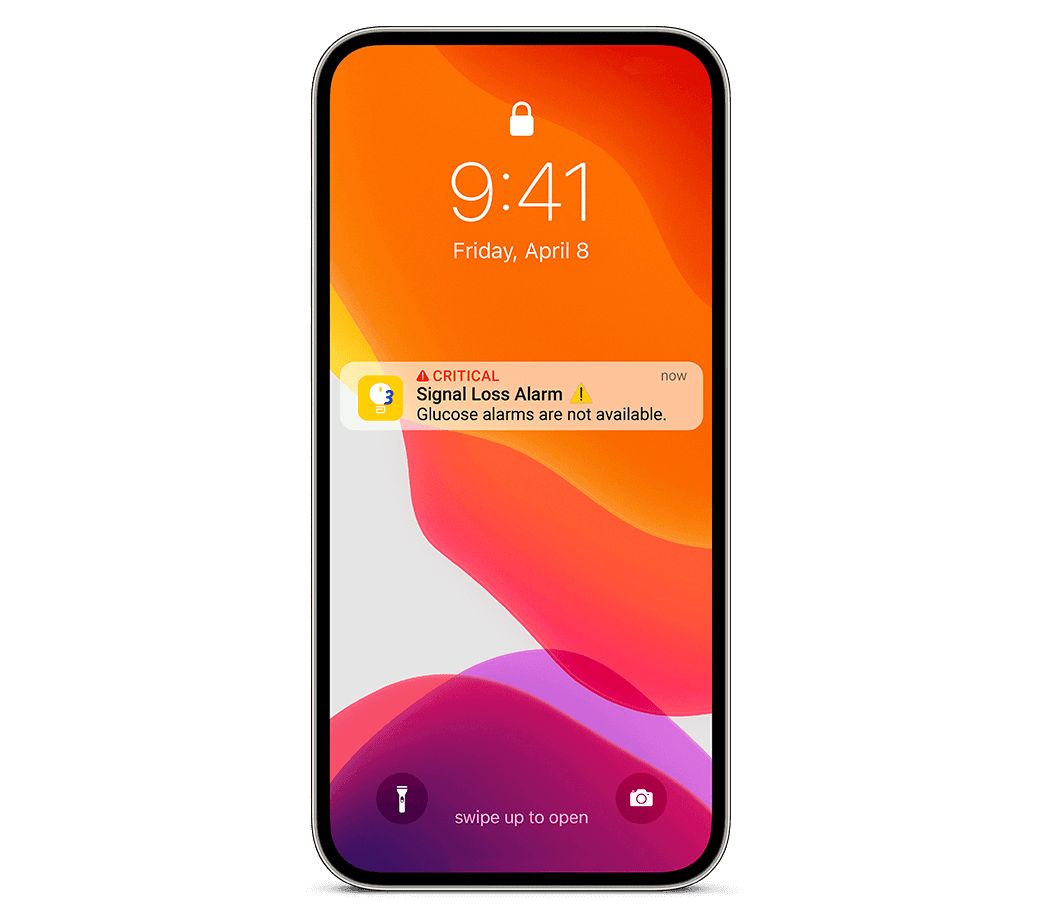
.svg)










Easy to set up and use
Optional glucose alarms are easy to turn on, easy to customise low and high glucose alarm ranges and easy to adjust sound and vibration.2
How it works
How to set glucose alarms on your smartphone
Once you've started your sensor, follow the instructions below to receive alarms on the LibreLink◊ or Libre 3 app.◊◊
1 | Turn alarms ON and ensure that your smartphone is within 20 feet (FreeStyle Libre 2 system) or 33 feet (FreeStyle Libre 3 system) of you at all times, unobstructed. | 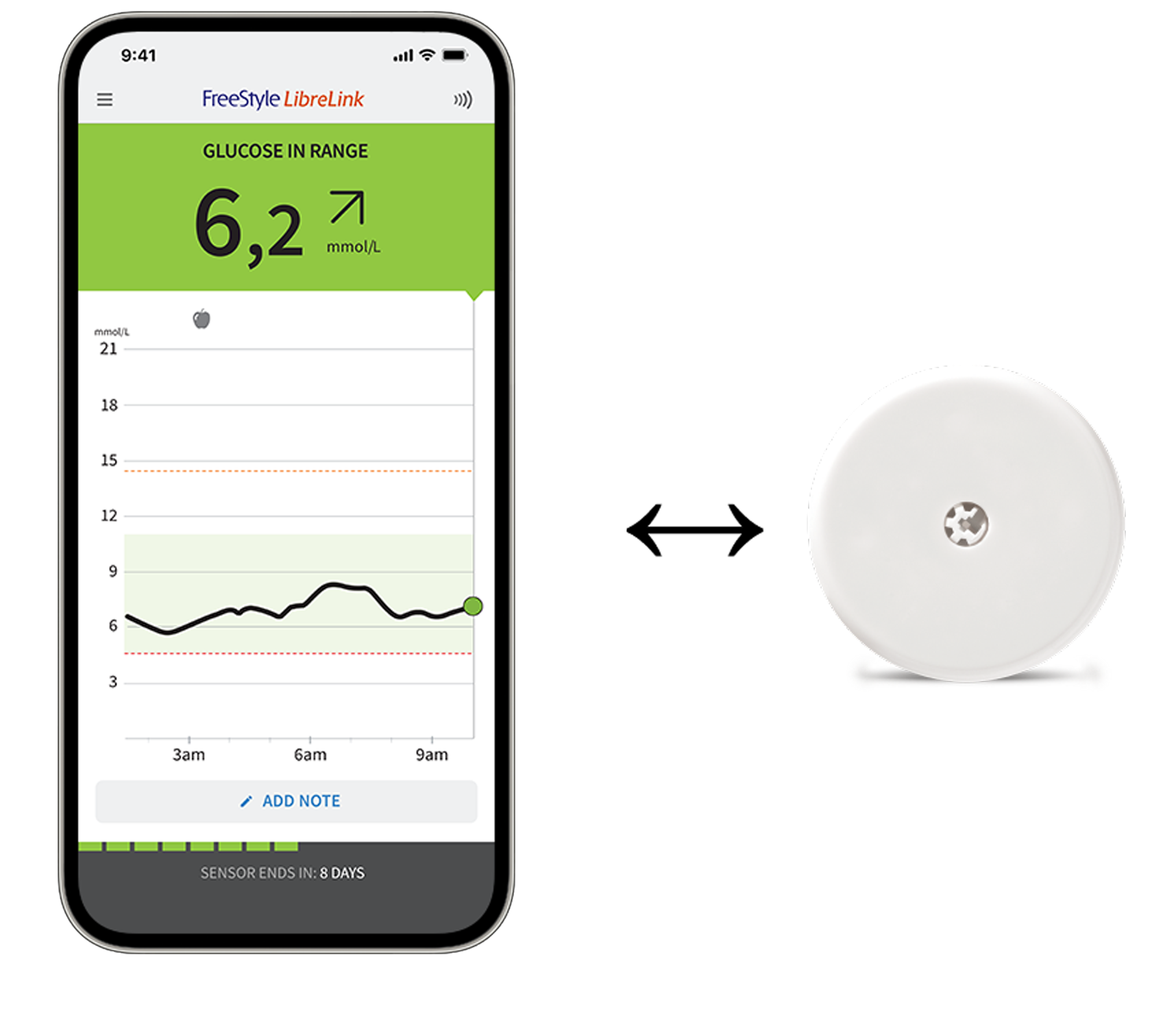 |
2 | Do not force close the app – keep it running in the background. |  |
3 | Check you have the correct settings and permissions enabled on your phone to receive alarms. |  |
4 | If you restart your phone, open your App to make sure it’s working properly. |
5 | The App will ask for phone permissions which are needed to receive alarms. Allow these permissions when requested. |
How to set glucose alarms on the LibreLinkUp app§
With the LibreLinkUp app, family members and friends can receive your real-time glucose readings and customise glucose alarms.^ For more information about connecting and sharing glucose information with caregivers, go to the LibreLinkUp page. To set up alarms on LibreLinkUp, follow the instructions below.
1 | LibreLinkUp users can set their own Alarms Settings when their connection is using a Libre 2 Plus sensor with their LibreLink app, or Libre 3 or Libre 3 Plus sensor with their Libre 3 app.◊◊ |
2 | Next, open the LibreLinkUp app and tap the Notification Settings icon |

3 | Toggle the Glucose Alarms on |

How to activate alarm notifications on a smartphone
To receive optional glucose alarms on your smartphone, you need to make sure you have notifications enabled for the app. If you didn't enable all notifications and permissions during app set up, how you do it now depends on whether which app you're using and your phone's operating system.
On an iPhone
-
Enable Bluetooth and allow the App to access Bluetooth.
-
Allow Notifications for the App. Turn on Lock Screen and Banner alerts, Notification sounds, and general phone sounds or vibration. Be sure not to turn on any features or modify phone settings that may interrupt the presentation of notifications.
If you use Do Not Disturb mode on your phone:
Turn off Do Not Disturb mode or select to turn on Override Do Not Disturb in your alarm settings. Do this if you want the alarm to always play a sound and appear on the lock screen even if your phone is muted or Do Not Disturb is on.
Note: You must accept the app’s permission request for Critical Alerts to use this feature. You can also enable the Critical Alerts setting directly from the app’s notification settings.
On an Android device
-
Enable Bluetooth and allow Nearby Devices permission for the App (Nearby Devices permission is required for Android 12 and above).
-
Allow Notifications for the App. Turn on Lock Screen notifications, Notification sounds, Channel notifications, Sound and Pop-up notifications, and general phone sounds or vibration. Make sure not to turn on any features or modify phone settings that may interrupt the presentation of notifications.
-
Turn off Do Not Disturb mode or manage the settings for your alarms to override Do Not Disturb. Override Do Not Disturb functionality depends on the phone model and Android operating system version you are using.
-
Allow Alarms & Reminders permission for the App. This permission is required for Android 12 and above.
-
Turn off Battery Optimisation for the App to allow the App to run in the background and ensure that you receive alarms, even when your phone has low battery.
-
You may need to add the App to the list of apps that will not be put to sleep.
Here's how to make sure you don't miss your alarms
There are some things you can do to make sure you don't miss any glucose alerts:

Make sure your phone is within 6 meters of you at all times, unobstructed

Do not force close the FreeStyle LibreLink app - let it run in the background

Check to make sure that you have the correct settings and permissions enabled on your phone to receive alarms.¤
On an iPhone
-
In the phone settings, ensure Bluetooth is ON
-
In the phone settings for the FreeStyle Libre 3 App, allow the app to access Bluetooth
-
In the phone settings for the FreeStyle Libre 3 App under Notifications:
Keep Allow Critical Alerts ON
Keep Allow Notifications ON
Keep Lock Screen and Banner alerts ON
Keep sounds ON
If you adjust the phone ringer volume to silent or use the phone's Do Not Disturb setting:
Turn Override Do Not Disturb setting in the app ON for Low Glucose, High Glucose, and Signal Loss Alarms to ensure you receive audible alarms.
Note: You must accept the App’s permission request for Critical Alerts to use the Override Do Not Disturb feature. You can also enable the Critical Alerts setting directly from the App's notification settings.
Here's how to make sure you don't miss your alarms
There are some things you can do to make sure you don't miss any glucose alerts:

Make sure your phone is within 33 ft of you at all times, unobstructed

Do not force close the app — it must be running in the background to receive alarms
If you restart your phone, open your app to make sure it’s working properly.

The app will ask for phone permissions that are needed to receive alarms
Allow these permissions when requested or follow the instructions in the enabling notifications section of this page.

Check to make sure that you have the correct phone settings and permissions enabled¤
If your phone is not configured properly, you will not receive alarms.
What to do if you receive a signal loss alarm
To continue receiving low or high glucose alarms, check the following steps: